Replacing the Proximus ONT with a single SFP+ stick
How I threw out the operator's Nokia ONT and B-box and ran my whole fiber connection through one FS.com SFP+ module inside my own router — PON serial registration, VLAN 20, optical levels, and the O5.1 state. Tested on the Proximus network.
A couple of days after the fiber got installed, a small box from FS.com landed on my desk. Inside was the whole point of the exercise: a single XGS-PON SFP+ stick that lets me throw out both operator boxes — the Nokia ONT and the B-box — and run my entire connection through one module plugged straight into my own router.
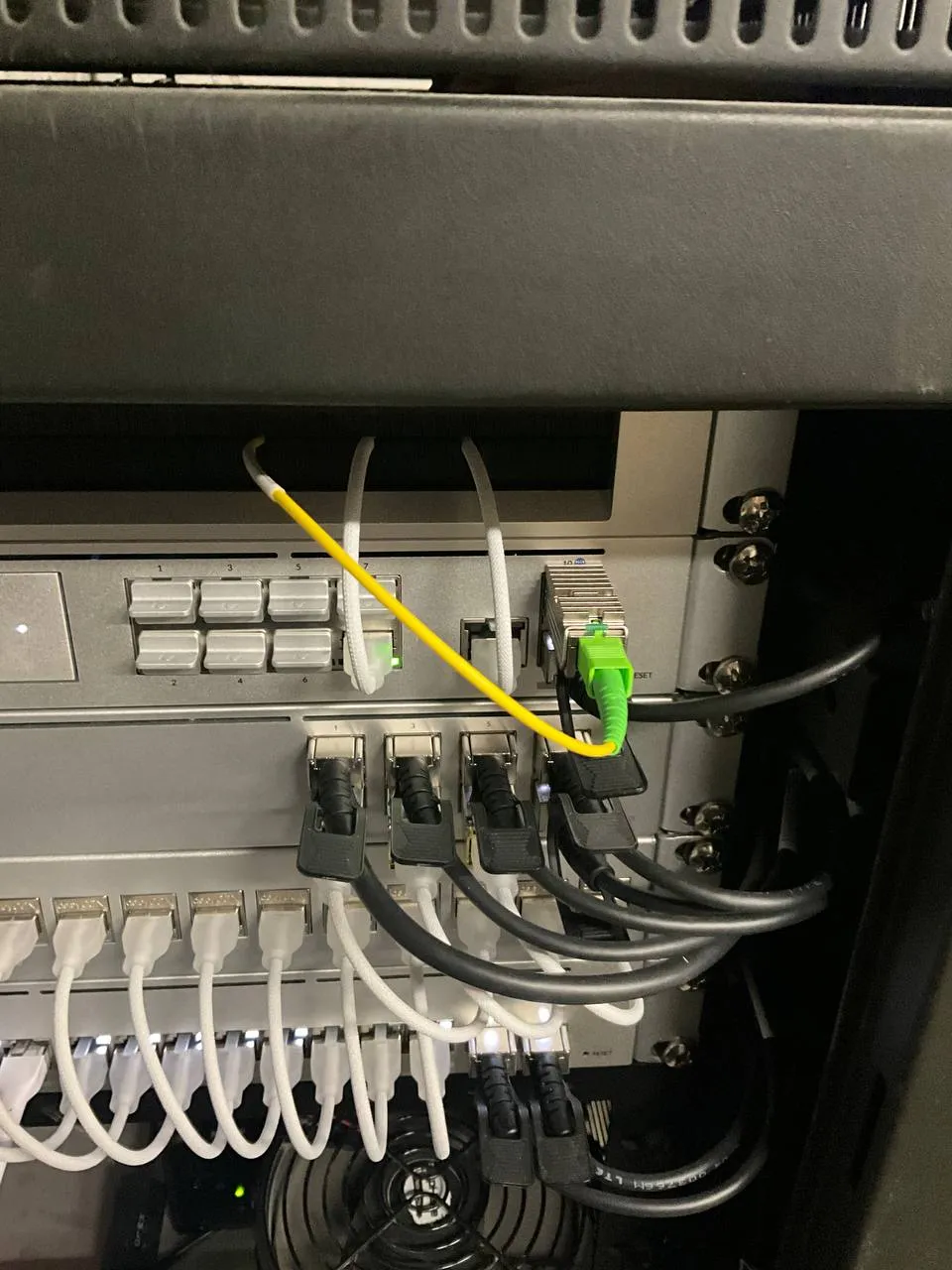
The end state: one FS SFP+ ONT (green SC/APC) in the router’s SFP+ port. No Nokia ONT, no B-box — just the stick.
This is the guide I wish I’d had: replacing the operator-supplied ONT + B-box combo with a single FS.com SFP+ stick directly in a router that has an SFP+ WAN port (UniFi UDM Pro, MikroTik, OPNsense, and friends). Tested on the Proximus retail fiber network in Belgium. Mobile Vikings is a Proximus subsidiary on the same network, so it should behave identically; other Belgian fiber operators (the Fiberklaar open network and its resellers, for instance) follow the same bring-your-own-ONT principle but can differ in the details — check your own operator’s ONT spec before assuming VLAN 20 and SN auth carry over unchanged.
Why do this
The operator gives you a Nokia ONT (fiber → Ethernet) plus a B-box (router / WiFi / voice). If you already run your own router, the B-box is dead weight and the Nokia ONT is an extra hop. Replacing both with an SFP+ ONT stick gives you:
- Three boxes → one (just the stick inside your router)
- One less point of failure
- No double NAT (the B-box was sometimes a router even in “bridge mode”)
- Less power draw, less heat, less cable clutter
- All routing and firewalling on your own kit — which you trust
The BIPT decision of 26 September 2023 — enforced from 1 November 2024 — requires Belgian ISPs to let you bring your own modem.
What you need
Hardware
| Item | Recommendation | Approx. price (incl. VAT) |
|---|---|---|
| XGS-PON SFP+ ONT stick | FS.com XGS-SFP-ONT-MAC-I, Generic, Web GUI variant (SKU 378867) | ~€235 |
| Fiber patch cord | SC/APC ↔ SC/APC, simplex, single-mode OS2, G.657.A2, LSZH, yellow jacket, ~3m | ~€10 |
| A router with an SFP+ WAN port | UniFi UDM Pro / SE / Max, MikroTik CCR, OPNsense box with SFP+ NIC, etc. | (already owned) |
Alternatives
- WAS-110 (MaxLinear PRX126) with 8311 community firmware — cheaper than the FS module (the bare stick is ~€140; reckon ~€150–200 delivered to the EU once VAT and duty land), open-source firmware, better for tinkerers. Different hardware and firmware ecosystem — it won’t match this guide’s web-UI screenshots, but it’s functionally equivalent.
- FS.com SKU 185594 (no Web GUI variant) — same hardware, CLI / telnet only. Requires an extra config step to change the ETH UNI slot from 10 to 1.
Active service
- A live Proximus fiber line (XGS-PON for full 10G, or GPON for up to 1G — same procedure either way)
- Access to mijn.proximus.be / myproximus.be with the “use your own modem” feature enabled
- Your Proximus customer / subscription number
Background concepts
You don’t need all of this to do the install, but it helps when things go wrong.
Network topology
Street fiber
    ↓
[Unifiber wall box / OTP / NTP-A]   ← passive termination, SC/APC port
    ↓ fiber patch cord
[FS SFP+ stick in your router]      ← active ONT, OMCI-managed
    ↓
[Your LAN]
The Unifiber wall box (also called OTP, NTP-A, or PTO) is the legal demarcation point. The operator owns everything upstream; you own everything downstream. It’s a passive device — just a fiber termination with one or two SC/APC ports on the bottom.
What the ONT actually does
- Terminates the XGS-PON optical link (1270 nm TX upstream / 1577 nm RX downstream)
- Registers with Proximus’ OLT (Optical Line Terminal) at the central office using a PON Serial Number
- Receives OMCI configuration from the OLT — including VLAN translation rules
- Bridges Ethernet frames between the PON side and the SFP+ host side
- Reports optical levels, temperature, and alarms via OMCI
It is a transparent layer-2 bridge. You don’t manually configure VLANs on it — the OLT pushes the config via OMCI.
How Proximus delivers service
Proximus uses Single VLAN service: each subscriber gets a unique S-VLAN + C-VLAN combination, which the ONT translates to C-VLAN 20 on the UNI (host) side. Your router sees VLAN 20 tagged traffic and uses DHCP to get a public IPv4 address.
So on your router:
- WAN VLAN ID: 20
- IPv4: DHCP
- IPv6: DHCPv6 with Prefix Delegation — a /56. Proximus delegates a /56 on both residential and business plans; some older guides quote /48 for business, but the current allocation is /56 (with a /57 routed to your firewall on the structured business “IP pack”).
Authentication
Proximus uses Serial Number (SN) authentication — not LOID / password. You register the ONT’s PON SN with Proximus, the OLT recognizes it, the ONT is authorized.
Step-by-step setup
1. Order the FS module
Order the FS.com XGS-SFP-ONT-MAC-I, Generic with Web GUI. It ships from FS’s EU (Germany) warehouse — a few business days if it’s in EU stock, up to ~2 weeks if it has to come from the global warehouse. Check the live stock indicator above the Add-to-Cart button before you count on a date.
2. Order the fiber patch cord
Order an SC/APC ↔ SC/APC simplex single-mode patch cord. Length depends on the distance from the Unifiber wall box to where your router sits. 3m is typical for a wall-mounted box and a rack-mounted router; measure with slack.
Both connectors must be green (SC/APC). Blue (SC/UPC) won’t work properly — the angle mismatch causes massive insertion loss.
You can usually re-use the patch cord that was already plugged into the Nokia ONT — check that both ends are green before assuming.
3. Receive and pre-configure the ONT (before going live)
Plug the FS stick into any SFP+ port — your router, a switch with SFP+, doesn’t matter for setup. Don’t connect the fiber yet.
Get on the same subnet as the stick’s management interface:
- Default IP:
http://192.168.101.1 - Default login:
root/root
If accessing via your UDM Pro’s WAN port: temporarily set WAN1 to Static IP 192.168.101.2/24 (untagged, no VLAN). Then browse from any LAN device.
Once logged in:
- System → Administration — change the root password to something secure.
- Configuration → PON Configuration — note the existing PON Serial Number (ONT ID). Format:
XXXX(4 alphanumeric) +12345678(8 hex). This is what you register with Proximus. The serial on the box label is FS’s internal SKU and is NOT the PON SN. You can leave the SN as-is, or change it if you have a specific one to use. - Configuration → OMCI Configuration — leave LOID and password empty. Proximus uses SN auth, not LOID.
- Configuration → VLAN Configuration — do not touch. Proximus pushes the VLAN translation via OMCI.
Save & Apply, then reboot the stick from System → Reboot.
4. Register the PON serial number with Proximus
Log into mijn.proximus.be (or call Proximus customer service for business accounts):
- Go to “Mijn modem / Mon modem” or the equivalent section
- Find the “Bring your own modem” / “Eigen modem registreren” / “Enregistrer votre propre modem” option
- Enter the PON Serial Number from the FS stick’s web UI
- Submit
Proximus deactivates the Nokia ONT and registers your stick. Activation is typically near-instant but can take up to 30 minutes.
5. Physical install — move the fiber
- Identify the Unifiber wall box (white, small, typically near where the fiber enters your building). It may have two SC/APC ports; only one is live. Note which one the Nokia ONT was using.
- Disconnect the fiber patch cord from the Nokia ONT.
- Plug the patch cord into the FS stick’s SC/APC port (the green-connector end).
- The other end stays in the Unifiber wall box (same port as before).
- Plug the FS stick into your router’s SFP+ WAN port if you haven’t already.
Watch for:
- Dust caps on either fiber end — they must come off
- Connectors fully seated — they should click
- Same wall box port as the Nokia ONT was using
6. Configure your router’s WAN
On the UDM Pro (similar logic applies to other routers), under Settings → Internet → WAN1 (SFP+ port):
| Setting | Value |
|---|---|
| IPv4 Connection | DHCP |
| VLAN ID | 20 |
| MTU | 1500 |
| IPv6 Connection Type | DHCPv6 |
| Prefix Delegation Size | /56 (residential and business) |
| DHCPv6 Prefix Hint | (empty) |
| Send IA_NA | Off |
| Send IA_PD | On |
| Rapid Commit | On |
| Reconfigure Accept | Off |
Save and apply.
7. Wait for the link to come up
Within 1–2 minutes you should have a public IPv4 and a delegated IPv6 prefix.
Verification
Check ONT status
Browse to the stick’s web UI (set router WAN back to static 192.168.101.2/24 temporarily, or use the SSH tunnel method below). Look at Status → Overview or Configuration → PON Status.
What you want to see:
| Field | Expected value |
|---|---|
| PON Mode | xgspon (or gpon) |
| PON PLOAM Status | O5.1, Associated state |
| RX Power | −8 dBm to −28 dBm (anywhere in this range is fine; −16 dBm is typical) |
| TX Power | 4 to 9 dBm |
| TX Bias | 30–60 mA |
| Optic Temperature | 40–60 °C under load |
| Module Voltage | ~3.3 V |
| Transmitter Status | ENABLED |
O5.1 is the Associated substate of O5 (the ITU “Operation” state) — fully authenticated and passing traffic. On a plain GPON line you’ll just see O5. Anything below O5 means it’s still negotiating or has failed.
Check router WAN
- WAN1 should show Connected with a public IPv4 (Proximus typically uses
91.x.x.x,109.x.x.x,217.136.x.xranges) - IPv6 address present (starts with
2a02:for Proximus) - DNS configured (auto or your override)
Speed test — know what you’re measuring
Use fast.com or speedtest.net from a wired, multi-gig-capable client — not WiFi, and not blind faith in the router’s own number.
Two things worth knowing before you panic about a low figure:
- The UDM Pro’s famous “3.5 Gbps” is its IDS/IPS number, not a plain-routing cap. With deep packet inspection off and hardware offload on, the original UDM Pro routes close to its 10G line rate (~8.5–9 Gbps); 3.5 Gbps is what you drop to once you turn IDS/IPS on. So the router itself isn’t what holds a multi-gig line back unless you’ve enabled DPI.
- The UniFi built-in speed test runs on the gateway’s own CPU and is unreliable at multi-gig — it tends to read lower than reality, not higher. Treat it as a rough gauge, not ground truth; measure with a real wired client against a multi-gig endpoint.
On my Business Ultra line I see roughly 5.5 Gbps down. The number I actually care about is the upload: ~2.5 Gbps against a nominal 8. A symmetric shortfall would implicate my own kit (or DPI); a lopsided one with upload hit hardest points upstream at the operator — which is why that one is a Proximus ticket, not a me problem.
Troubleshooting
PON Offline / O1.1 Off-sync state
No downstream optical signal is reaching the stick. This is purely physical:
- Is the fiber patch cord actually plugged into the stick? (Easy to forget.)
- Is the other end in the correct Unifiber wall box port? (Some boxes have two ports, only one is live.)
- Dust caps removed from both ends of the patch cord?
- Connector fully seated (clicked in)?
- Is the cable SC/APC ↔ SC/APC (both ends green)? SC/UPC won’t work properly.
- Is the operator-side fiber even active? (If you’ve never had service to this address, the line might not be lit yet.)
O3 or O4, stuck
Authentication is failing. The OLT sees you but doesn’t accept your SN.
- The PON SN in the stick’s web UI must exactly match what’s registered with Proximus
- Wait 30+ minutes after registration — Proximus’ systems can be slow
- Make sure Proximus actually deactivated the Nokia ONT — they’re sometimes left active and conflict
Stuck at O5.0, or never reaches O5.1
Rare. Usually a firmware mismatch between ONT and OLT. Try rebooting the stick. If it persists, contact FS support and Proximus simultaneously.
Router gets no DHCP lease on VLAN 20
- Is the PON state O5.1? (It must be Associated.)
- Is the VLAN ID exactly 20 (no extra characters, not 0, not blank)?
- Is IPv4 set to DHCP, not PPPoE or static?
- Try a router reboot — some routers cache stale WAN config
IPv6 not working / no AAAA records
- Check IA_NA is Off and IA_PD is On in the DHCPv6 client options
- Some Proximus residential plans delay IPv6 enablement by a few hours
- Make sure each LAN VLAN has IPv6 Interface Type: Prefix Delegation with RA enabled
Port forwards not working
- Verify your new WAN IP and update DNS records accordingly
- Check whether you’re behind CGNAT: compare
curl ifconfig.mefrom a LAN client againstip addr showon your router’s WAN interface. If they differ and the router shows a100.64.x.xaddress, you’re behind CGNAT and port forwards won’t work — call Proximus and ask for a real public IP (business plans should always have one). - Some Proximus residential plans block inbound 25 / 80 / 443 by policy; business plans typically don’t
Accessing the ONT web UI after deployment
Once your router is tagging VLAN 20 for Proximus, the ONT’s management interface at 192.168.101.1 is no longer trivially reachable. Three options, easiest to hardest:
Option A: Just don’t (recommended for most)
After install, you rarely need the ONT web UI. The status (PON state, optical levels, temp) is interesting once but doesn’t change. Skip ongoing access unless you’re a monitoring obsessive.
Option B: Toggle WAN config when needed
When you want access:
- UniFi → Settings → Internet → WAN1
- Change from
DHCP + VLAN 20toStatic IP 192.168.101.2/24, no VLAN - Browse to
http://192.168.101.1 - Switch back when done
Internet drops for ~30 seconds during each toggle. Fine for occasional access.
Option C: Permanent secondary IP via SSH (UDM Pro example)
# SSH into the UDM Pro
ssh root@<udm-pro-ip>

# Find your WAN SFP+ interface (usually eth9 on a UDM Pro)
ip link show
# Look for the interface with a `.20@<iface>` VLAN subinterface — that's your WAN SFP+

# Add a management IP (untagged, alongside the VLAN 20 tagged traffic)
ip addr add 192.168.101.2/24 dev eth9

# Make it persistent across reboots (requires the udm-boot package)
cat > /data/on_boot.d/10-ont-mgmt.sh << 'EOF'
#!/bin/sh
sleep 30
ip addr add 192.168.101.2/24 dev eth9 2>/dev/null || true
EOF
chmod +x /data/on_boot.d/10-ont-mgmt.sh
Then either:
- SSH tunnel from your laptop:
ssh -L 8101:192.168.101.1:80 root@<udm-pro>then browsehttp://localhost:8101 - Direct LAN access: add
iptables -t nat -A POSTROUTING -d 192.168.101.0/24 -o eth9 -j MASQUERADEto the same boot script, then any LAN device can browsehttp://192.168.101.1
Going back to operator equipment
If something goes wrong and you need to revert (e.g. to call Proximus support and rule out your hardware):
- Disconnect the fiber patch cord from the FS stick
- Reconnect it to the Nokia ONT (which you kept in a drawer, right?)
- Connect the Nokia ONT’s Ethernet to the B-box WAN port
- Power on the B-box
- Call Proximus and have them reactivate the Nokia ONT’s SN (or re-enable your old setup in the portal)
The whole process takes about 5 minutes if you kept the equipment. Do not throw out or return the Nokia ONT — it’s your diagnostic fallback.
References
Official documents
- Proximus ONT specification — “Free choice of Modem” (PDF) — the authoritative Single-VLAN / C-VLAN 20 spec
- Mobile Vikings ONT specification (PDF) — Mobile Vikings rides Proximus, so the spec matches
- FastFiber ONT specifications (PDF) — for the Fiberklaar network; a different operator, same BYOD principle, but verify the specifics
- FS.com XGS-SFP-ONT-MAC-I configuration guide (PDF)
- BIPT Decision of 26 September 2023 on the network termination point
Community resources
- pon.wiki — XGS-PON community knowledge base, focused on the WAS-110 and 8311 firmware
- hack-gpon.org — older FS module reverse-engineering
- matterne.io guide — Belgian, exact Proximus + FS module + UDM SE setup
- userbase.be forum — Belgian self-hosting community, Dutch / French
Belgian fiber operators
- Proximus — owns the physical network, retail customers
- Fiberklaar — open-access FTTH builder in Flanders, 100% Proximus-owned since 2024
- Unifiber — FTTH builder for medium-density Wallonia, 100% Proximus-owned since May 2026 (formerly a Proximus + Eurofiber JV)
- Mobile Vikings — Proximus Group subsidiary, runs on the Proximus network
- FastFiber — independent retail ISP on the Fiberklaar open network (a different operator from Proximus retail; mobile via Telenet / Base)
Quick reference card
FS.com module:       XGS-SFP-ONT-MAC-I, Generic, Web GUI variant (SKU 378867)
Patch cord:          SC/APC ↔ SC/APC, simplex, single-mode OS2, G.657.A2
ONT default IP:      192.168.101.1
ONT default login:   root / root  (CHANGE IMMEDIATELY)
PON SN format:       XXXX12345678 (4 alphanumeric + 8 hex)
ISP authentication:  Serial Number (SN), not LOID
Operator VLAN:       20 (tagged on UNI side)
IPv4 config:         DHCP
IPv6 config:         DHCPv6, IA_PD on, IA_NA off, /56
Operational state:   O5.1 Associated
Healthy RX:          −8 to −28 dBm
Wavelengths:         1270 nm TX upstream, 1577 nm RX downstream
OTDR wavelength:     1650 nm (reserved, must not interfere)
This was the satisfying half of a two-part saga. The story of how the fiber actually got from the pole across the street into my garage — the cancelled contract, the very polite installer, and the same-day activation surprise — is its own post.
Tested on the Proximus network with a UDM Pro and the FS XGS-SFP-ONT-MAC-I in June 2026. Operator specifics drift over time — always sanity-check against current documentation before you unplug anything.